Performance Tuning of Windows
Mid-level notebook computers with limited RAM and slow HDD or SSD can be tweaked in order to run faster and make more RAM available to the web browser and other useful applications.
This article explains how to speed up Windows on notebook computers, boost Windows performance, turn off unnecessary system services, and make your computer run faster.
| Contents |
1. Intended audience of this article
This article is for people who install Windows and want to make it run faster. It is especially important for mid-level notebook computers with limited RAM and slow HDD or SSD, as difference between Windows XP and modern version of Windows in speed is very noticable for them.
Using our tool FlashBoot you'll be able to install Windows to new laptop or new PC from USB thumbdrive. This article, however, goes further and explains post-installation procedures required to speed up Windows on this kind of hardware.
2. Optimization guide
Turn off Unnecessary Services
New users of Windows who came from Windows XP usually wonder: why Windows always performs some disk I/O, even if the computer is idle, there's no windows above desktop and taskbar is clear?
"For what purpose this OS is constantly torturing my harddisk and reducing its MTBF?"
Well, the purpose is not clear yet, but the cause of this problem has been found: A few useless system services. In order to disable them:
- Click Start, open Control Panel, switch to Classic View.
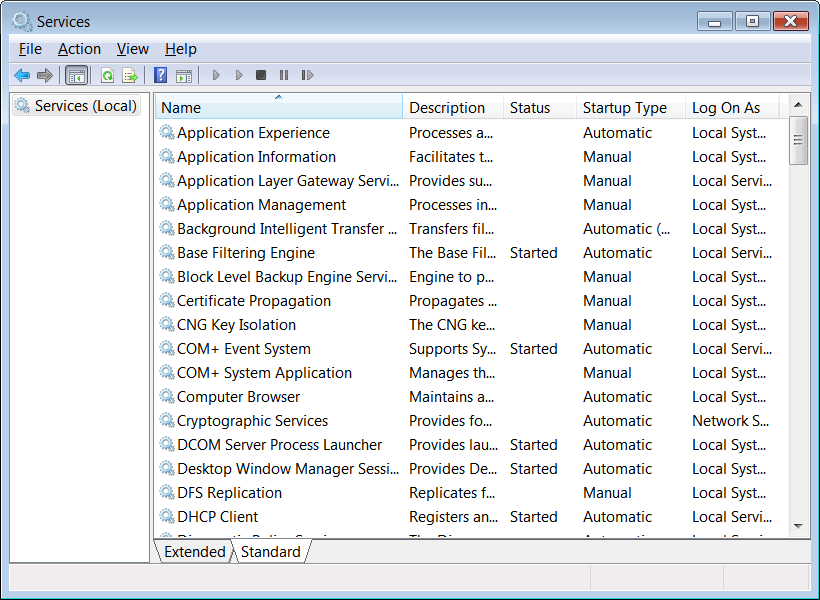
- Open Administrative Tools, then Services.
- You may click "Standard" tab at the bottom to reduce visual clutter on the screen:
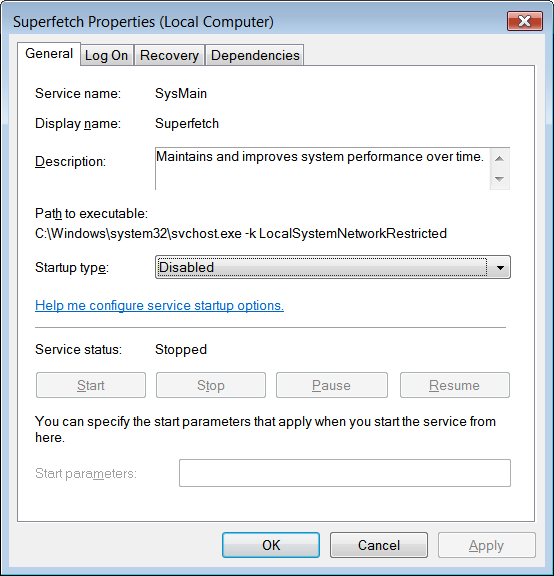
- Disable the following services: Superfetch, ReadyBoost, Windows Search, Windows Defender, Distributed Link Tracking Client, UPnP Device Host, SSDP Discovery.
- For each service listed above: double click service name in the list, in the popup window set Startup type to Disabled and click Apply button at the bottom. Then click Stop button and make sure Service status has turned to Stopped, and finally click OK at the bottom.
Disable System Restore
Theoretically, System Restore feature is to make sure that software installations, drivers, and other updates can be rolled back.
In practice, it never works that way and just wasting disk space and I/O.
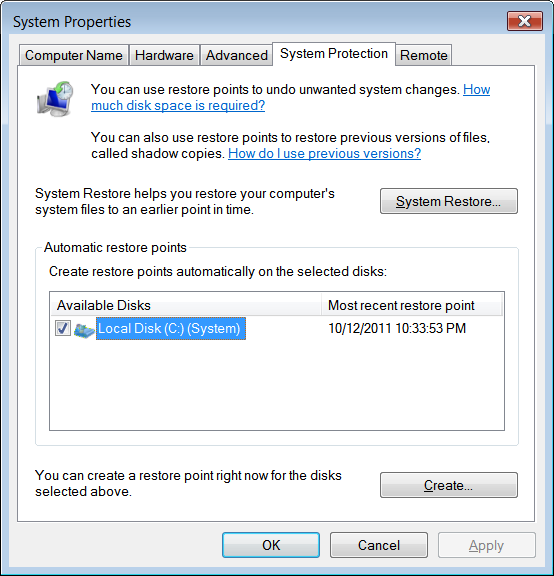
My Computer (right click) -> Properties -> System Protection -> System Restore
Un-check the checkbox for Local disk (C:), click Turn System Restore Off in confirmation window and then click OK
Disable Updating of File Last Access Time
Each time you read any file, Windows updates its attributes (last access time in particular). Such updates generate a lot of useless disk I/O. To disable this feature:
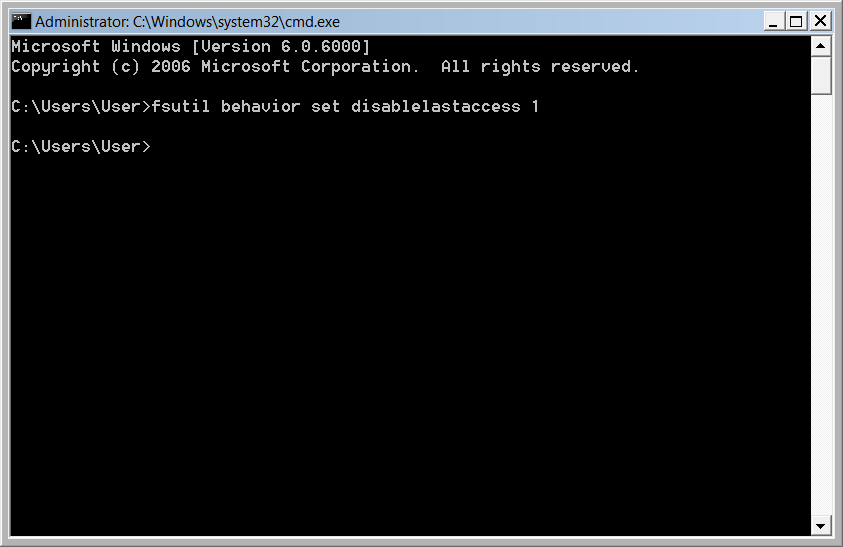
- Run command line (Start, Run ..., type cmd).
- Type fsutil behavior set disablelastaccess 1 and press Enter.
Faster Window Switching (Disable Minimize-Maximize Animation)
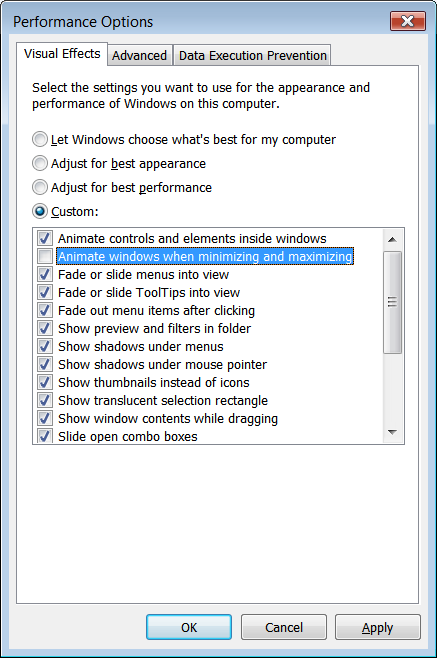
- Enter "SystemPropertiesPerformance" into search via the start up menu.
- Navigate towards the Visual Effects tab.
- The ticked box which has "Animate windows when minimizing and maximising" — get rid of the tick and then click OK.
Disable the Thumbnail Preview Feature to speed up File browsing
The thumbnail preview feature in Windows will show the small thumbnails of the contents of a folder instead of showing its icon. But this feature really do take up system resources. So by disabling the Thumbnail Preview feature the file browsing in Windows explorer can get some speed up.
- Double click on Computer icon on the desktop, then click on the Organize drop-down menu and select the Folder and Search options.
- In the View tab, in Advanced settings: check Always show icons, never thumbnails checkbox.
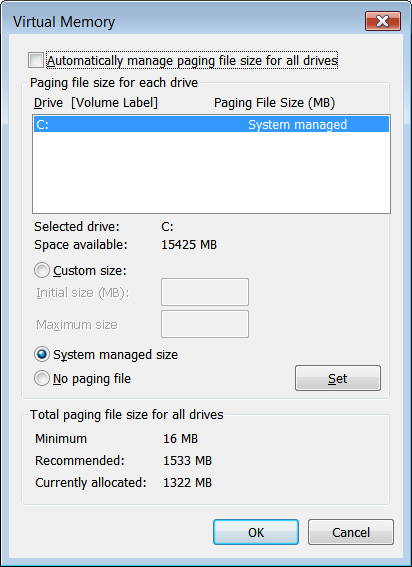
Disable swap file or move it to separate harddisk
Computers with 4GB or more RAM usually don't need swap file at all.
If system partition (usually C:) and swap file are located on different physical disks, Windows will work faster.
Swap file settings in Windows are under Start -> Control Panel -> Classic View -> System -> Advanced system settings -> Advanced tab -> Performance groupbox -> Settings... button -> Advanced tab -> Virtual memory groupbox -> Change... button:
3. Versions of Windows this article applies to
This article applies to all versions of Windows after Windows XP: Windows Vista, Windows 7, Windows 8.x and Windows 10/11 (both 32-bit and 64-bit editions), as well as equivalent Windows Server operating systems.
| About us | Partners | Contact us | Privacy policy |