Bypassing Windows Logon Screen and Running CMD.EXE With SYSTEM Privileges
Recently a lot of ransomware started to emerge. It's a kind of malicious software which installs links to itself into Windows startup lists, gets control on every reboot, and effectively locks users out of their own computers. To get rid of ransomware, expericenced user can run command prompt with SYSTEM privileges right on the Windows logon screen, before first logon session is established and Windows startup lists get executed.
This article explains how to bypass Windows Logon Screen and run system command prompt with key combination without entering Windows password, in order to get rid of ransomware, remove SMS blocker, remove Winlock manually.
| Contents |
1. Motivation
Recenly a lot of malicious software hijacking computer access has emerged. It is usually called ransomware and installs links to itself into various startup lists on Windows, thus getting control on every reboot. It effectively locks users out of their own computers. Once the ransomware has infiltrated a system, the moment the targeted user attempts to start-up the computer he/she is greeted with a dialogue providing instructions on how to perform the payment and unlock the computer.
The locker is not killable with Esc, Alt+F4, Alt+Tab or Ctrl+Alt+Del. Win+R, Win+E and other keyboard shortcuts don't work too. Windows Task Manager doesn't start or it is instantly killed by malware. Malware puts its fullscreen window atop of any running applications. All of this applies to Windows Safe Mode too. Many Windows users feel scared and hopeless, facing the choice to pay up or lose access to their computers for good.
Malware of this kind usually spreads masqueraded as a video codec or some other useful software.
This problem is especially sharp in Eastern Europe and CIS countries where out-of-goverment-control payment systems had paved their way to SMS/cellular networks and payment processing gateways. That's why this kind of malware is usually called "SMS blocker" in that part of the world. With the advent of Bitcoins and other cryptocurrencies this problem may become topical for Western countries as well.
2. Solution in a nutshell
We need to intercept Windows boot process early, before session of logged-in user is created and startup list with link to malware gets executed. With a command prompt in zero session we will be able to run Windows Task Manager, Registry Editor, Explorer, StRun, and other tools necessary to remove malware process from the RAM and the disk.
There's a file in Windows SYSTEM32 folder (usually C:\Windows\SYSTEM32) called SETHC.EXE (SET High Contrast) to enable this accessibility feature in order to allow people with visual impairments to log in. SETHC is activated at logon screen with LeftAlt+LeftShift+PrintScreen key combination.
By replacing C:\Windows\SYSTEM32\SETHC.EXE with C:\Windows\SYSTEM32\CMD.EXE we can popup command prompt with SYSTEM privileges running in zero session (in separate desktop space from normal applications including malware).
Full version of Emergency Boot Kit is required in this case, as we indend to write to the fixed hard disk.
3. Step by step guide
1. Download Emergency Boot Kit and deploy it to USB thumbdrive.
2. Set up your BIOS to boot from USB thumbdrive.
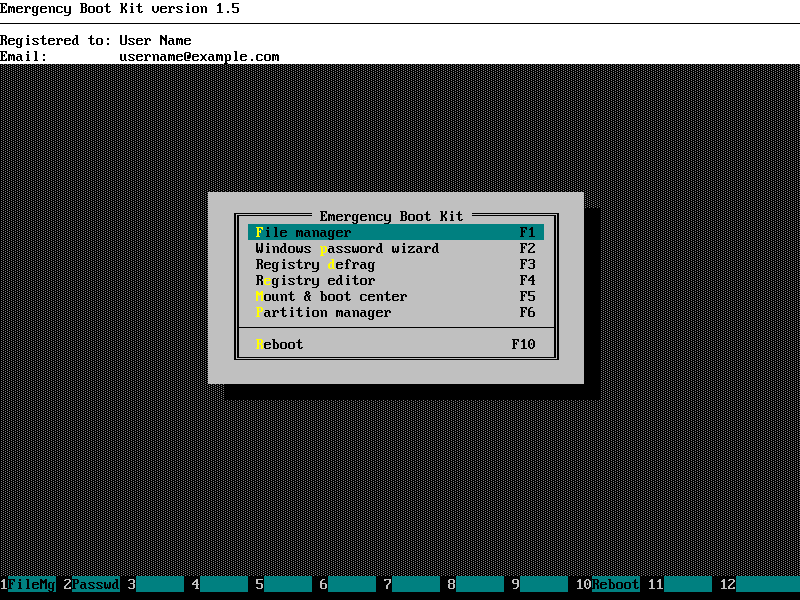
3. Choose "File manager" in the main menu of Emergency Boot Kit:
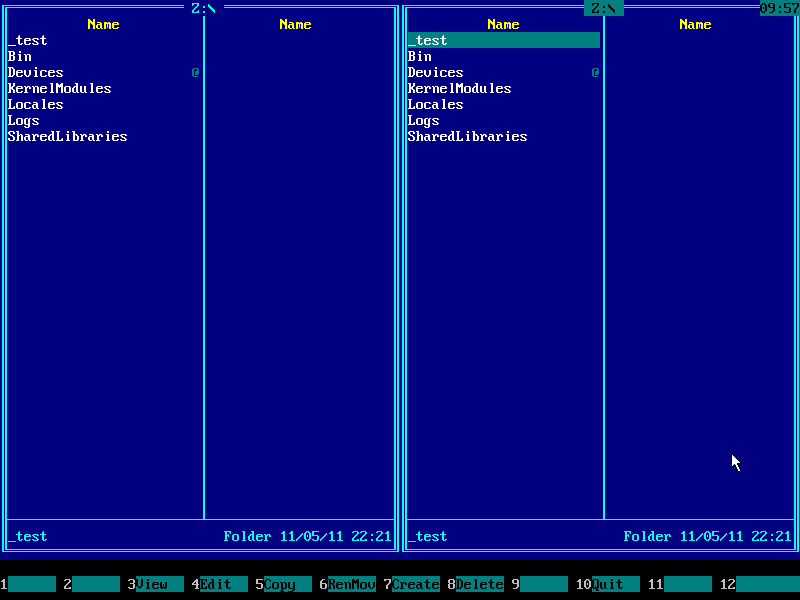
4. Emergency Boot Kit file manager (a kind of orthodox file manager) will start and show the pair of its blue panels:
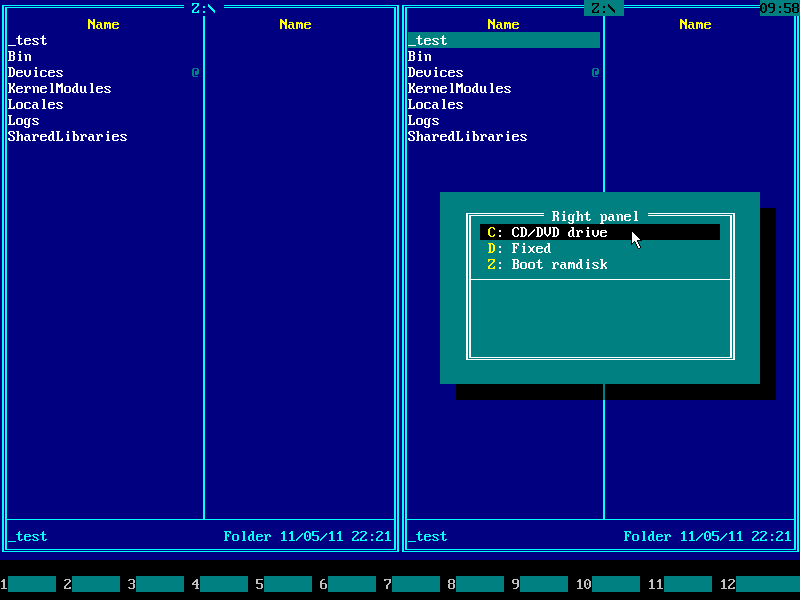
5. Press Alt+F2 and choose your Windows system disk from the disk selection menu on the right panel. Use ↑ (UP) and ↓ (DOWN) arrow keys to navigate. Usually it's C: but it may be D:, E: etc if there are CD/DVD drive letters before hard disk letters.
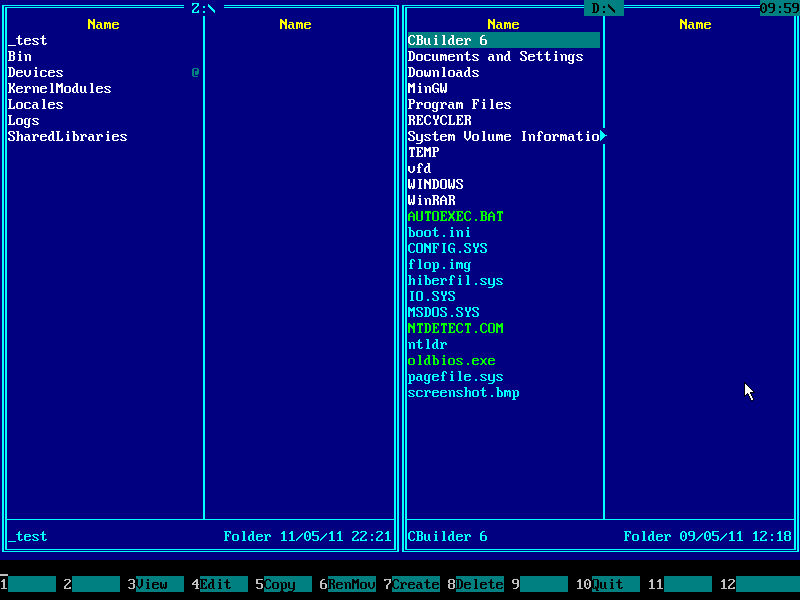
6. Contents of Windows system disk will be displayed on the right panel:
7. Navigate to Windows folder using ↑ (UP) and ↓ (DOWN) arrow keys and then press ENTER key to enter it:
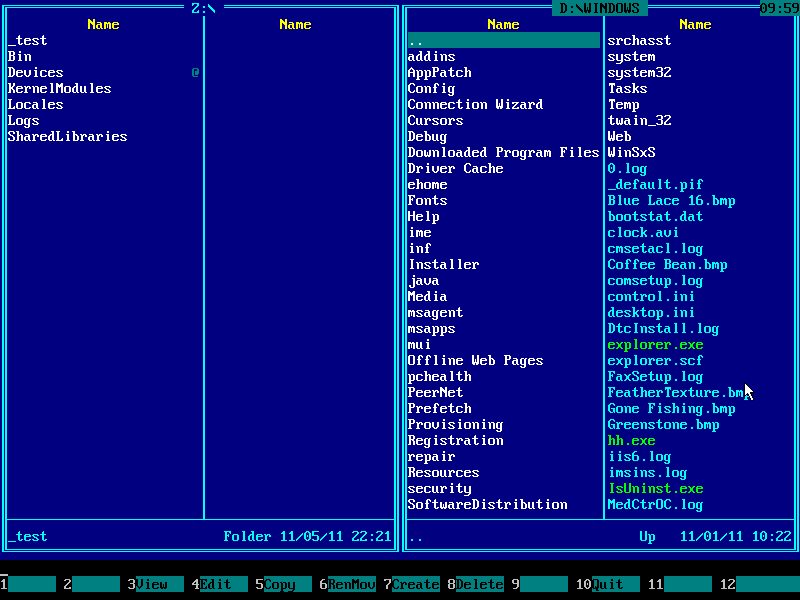
8. Navigate to SYSTEM32 folder using ↑ (UP) and ↓ (DOWN) arrow keys and then press ENTER key to enter it:
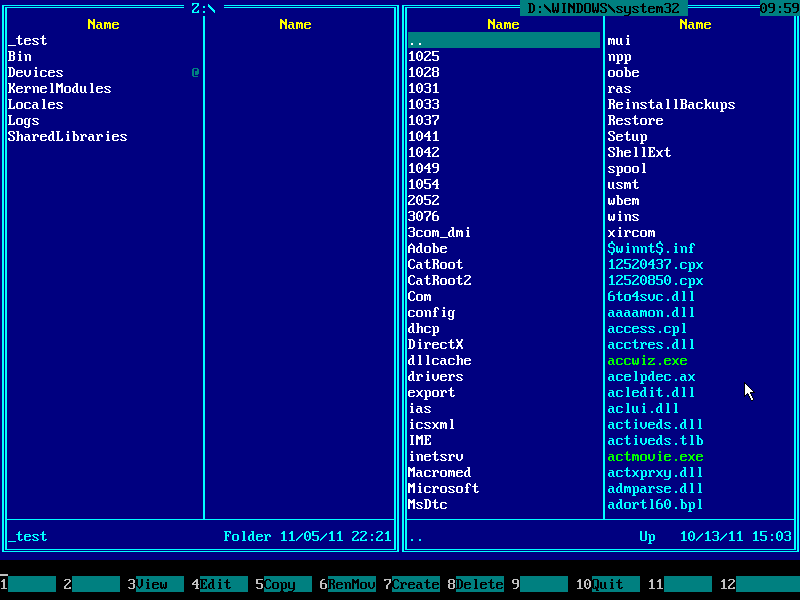
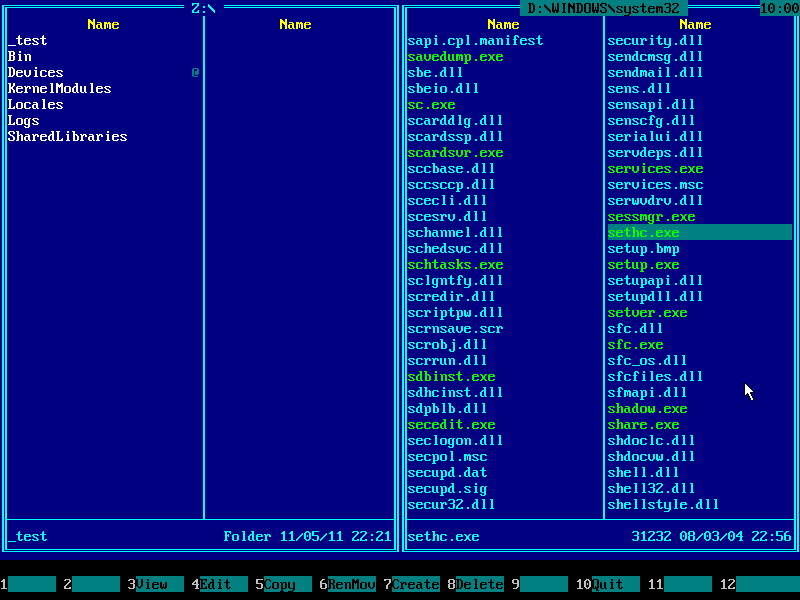
9. Make sure this folder contains SETHC.EXE file: use ↑ (UP) and ↓ (DOWN) arrow keys to navigate, also you may use PAGE DOWN and PAGE UP keys to scroll quickly:
10. Press Alt+F1 and choose your Windows system disk from the disk selection menu on the left panel. It must be same disk you've chosen earlier on the right panel:
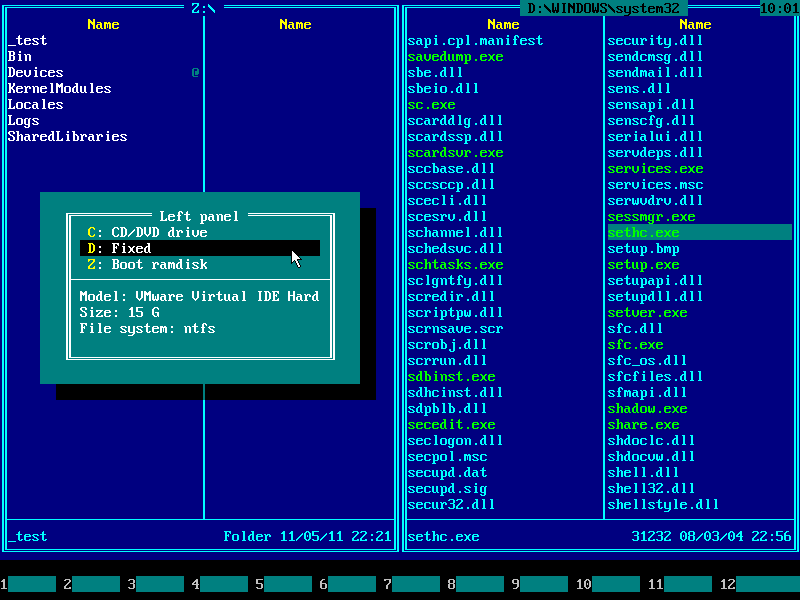
11. Contents of Windows system disk will be displayed on the left panel:
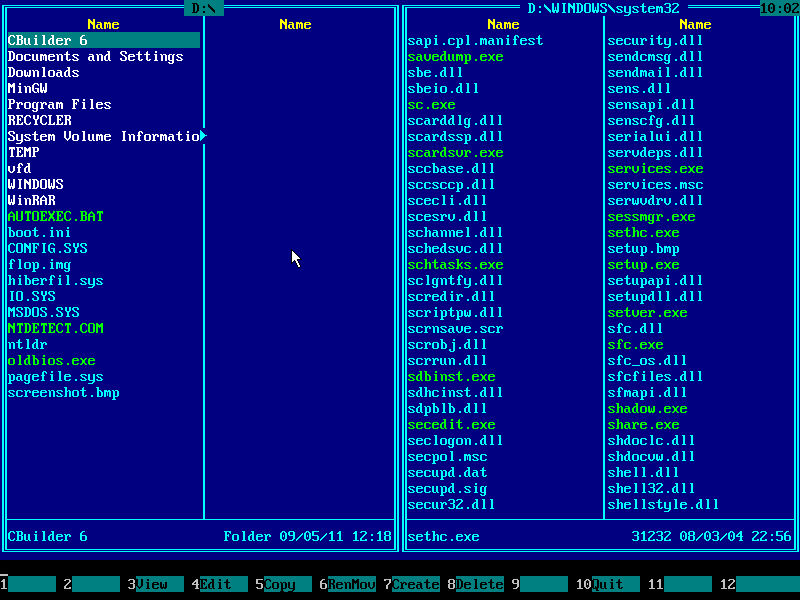
12. Press TAB key to jump into the left panel and then navigate to Windows folder with arrow keys:
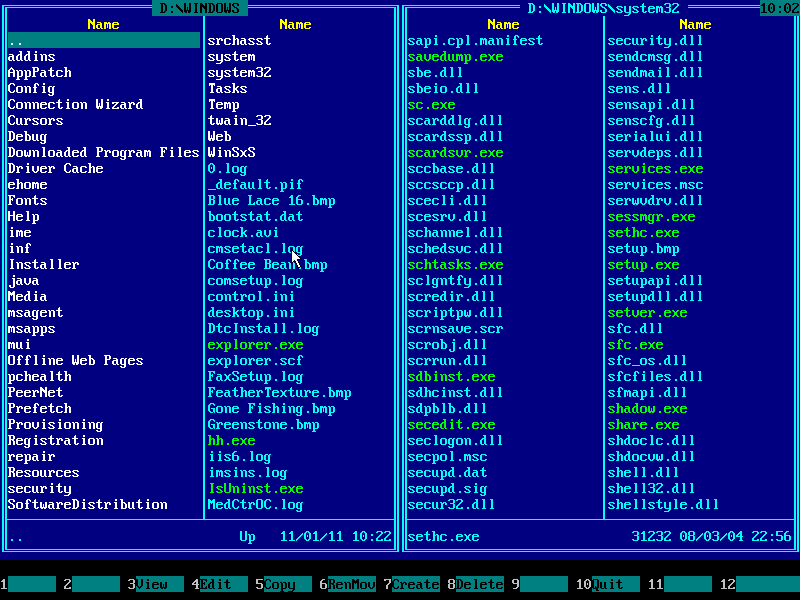
13. Navigate to SYSTEM32 folder with arrow keys:
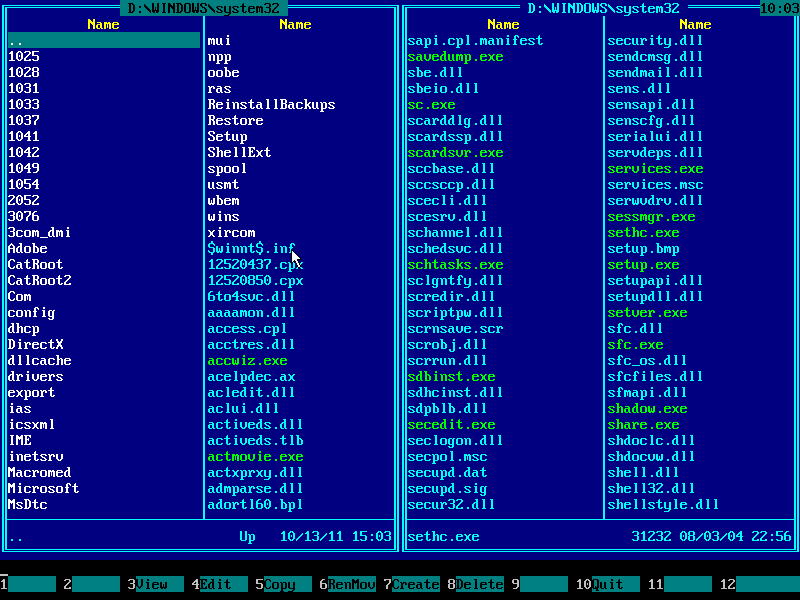
14. Make sure this folder contains CMD.EXE file: use ↑ (UP) and ↓ (DOWN) arrow keys to navigate, also you may use PAGE DOWN and PAGE UP keys to scroll quickly:
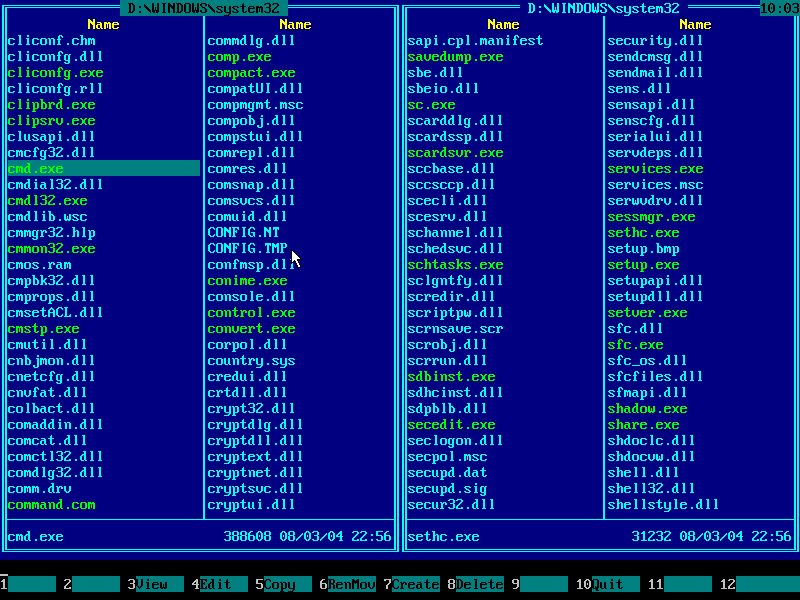
15. Press F5 to copy CMD.EXE from left panel to right panel. Copy dialog will pop up:
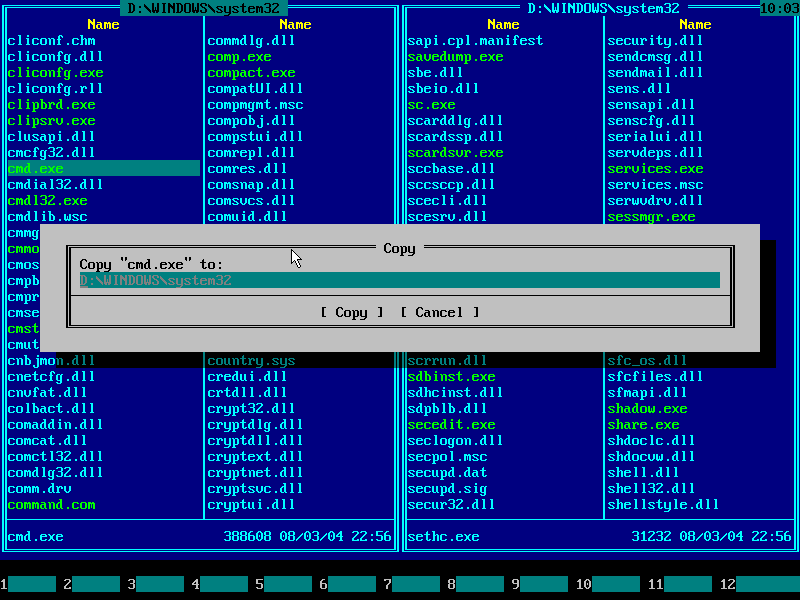
16. Press END to quickly navigate to the end of line and type "\sethc.exe" on your keyboard:
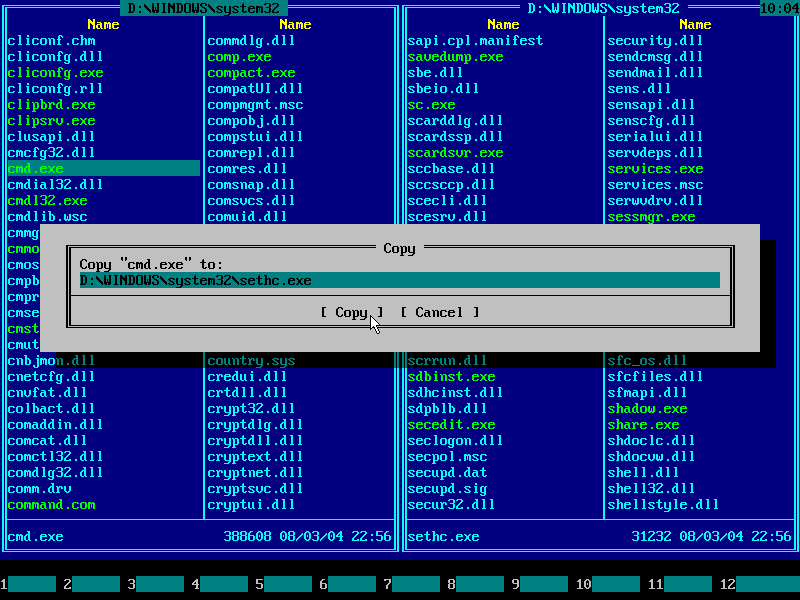
17. Press ENTER key or mouse-click Copy button to confirm file copy operation:
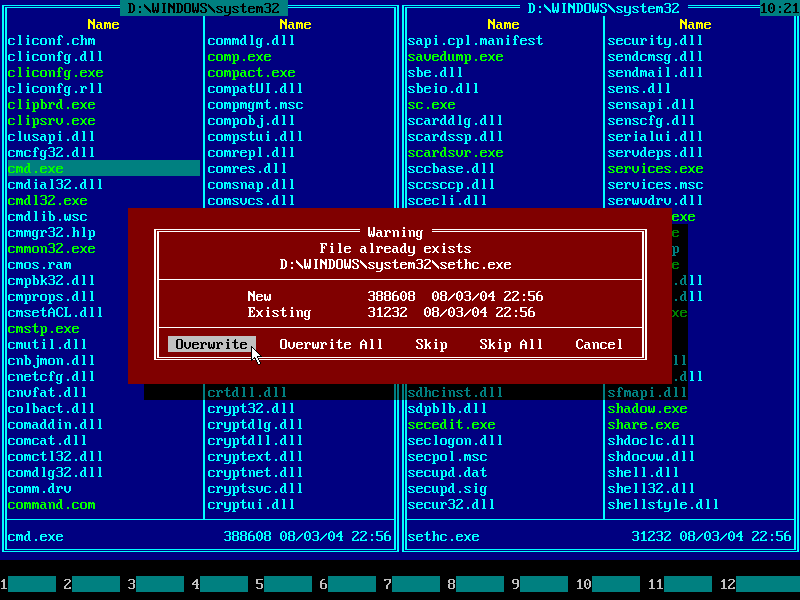
18. Press ENTER key or mouse-click Overwrite button to confirm file overwrite:
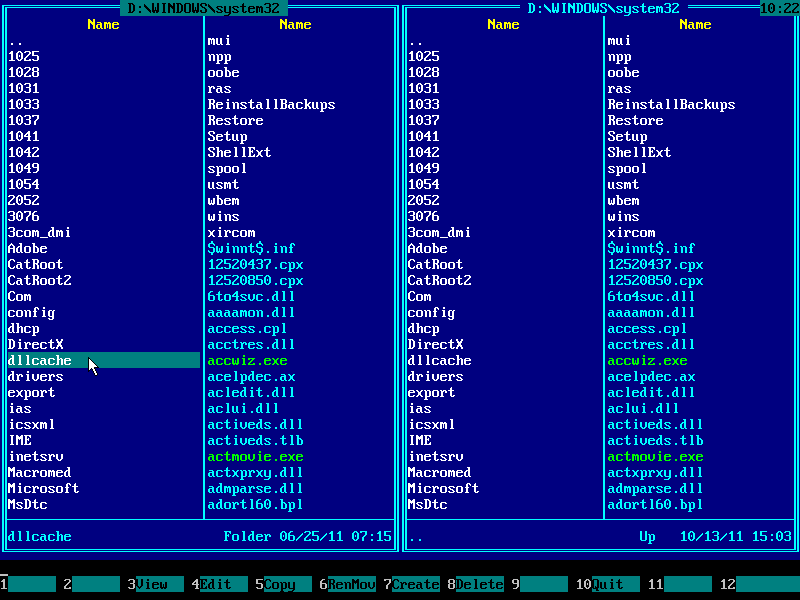
19. There's another place where Windows stores system files and applies restore from
it time to time. We need to perform replacements there as well.
Press HOME to navigate to the top of files/directories list on the left panel.
Find DLLCACHE folder there. Enter it:
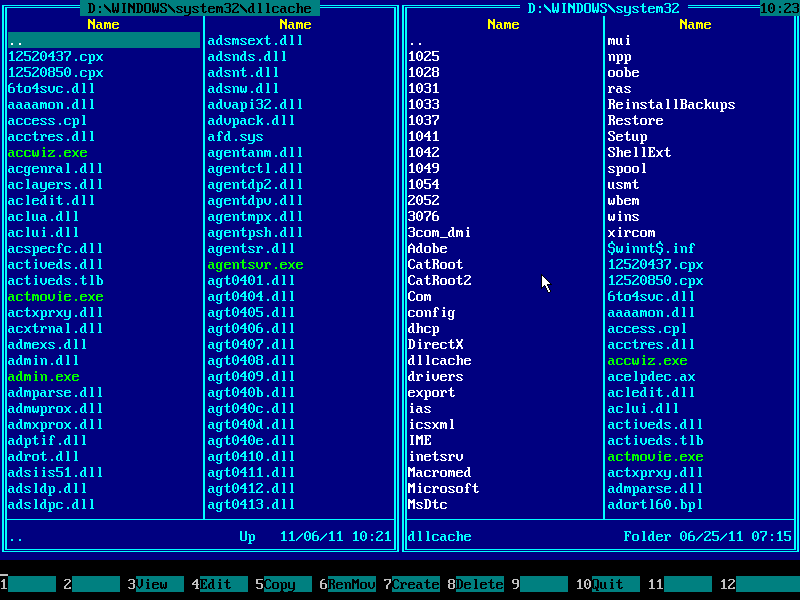
20. Using arrow keys and page scrolling keys find CMD.EXE file there:
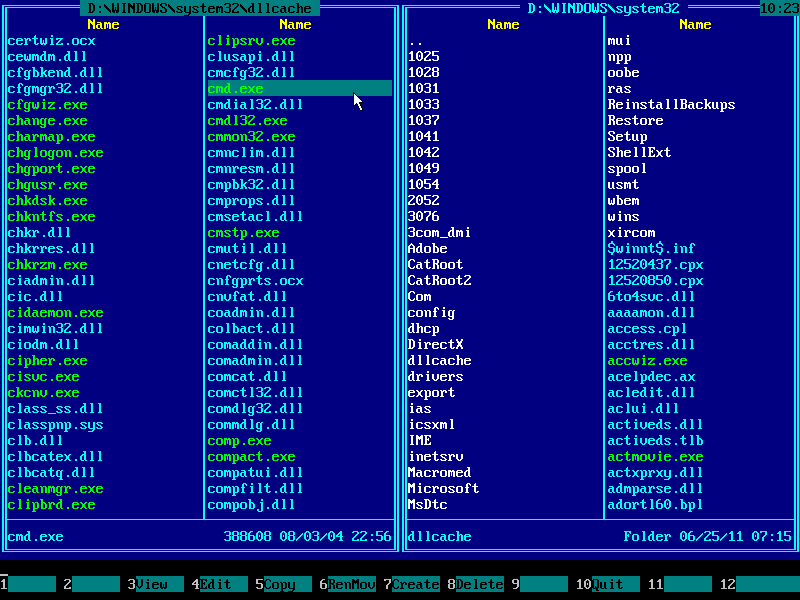
21. Press TAB to jump into the right panel. Make sure current path is \WINDOWS\SYSTEM32 (displayed at the top) and find DLLCACHE folder there:
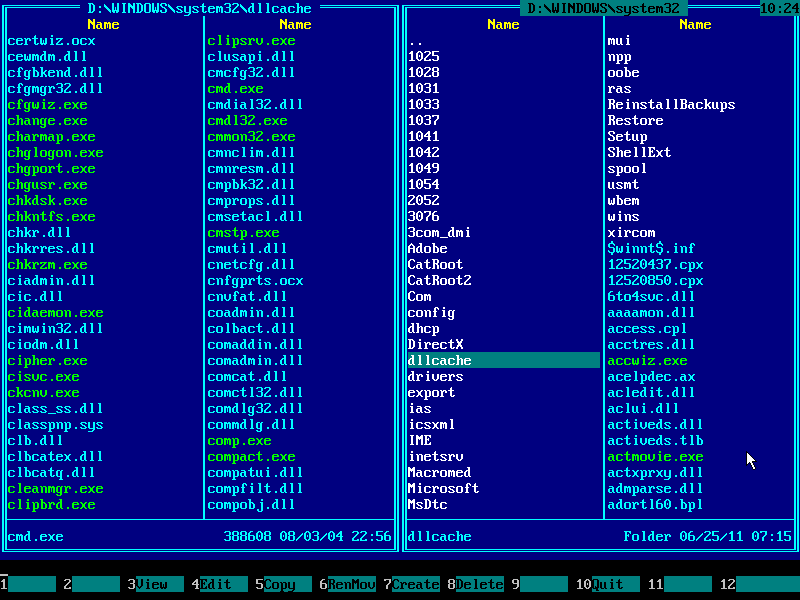
22. Press TAB to get back to the left panel:
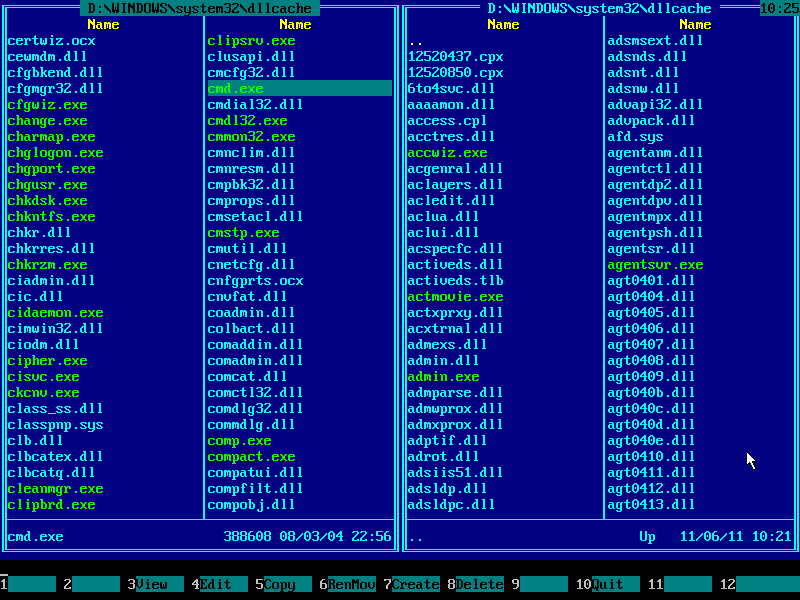
23. Press F5 to pop up copy dialog:
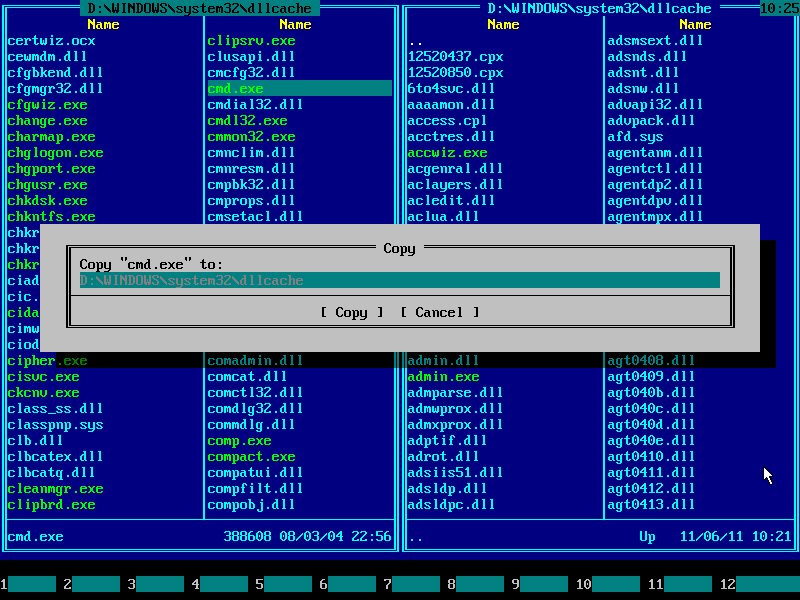
24. As before, press END to navigate to the end of line and append "\sethc.exe" by typing it from keyboard:
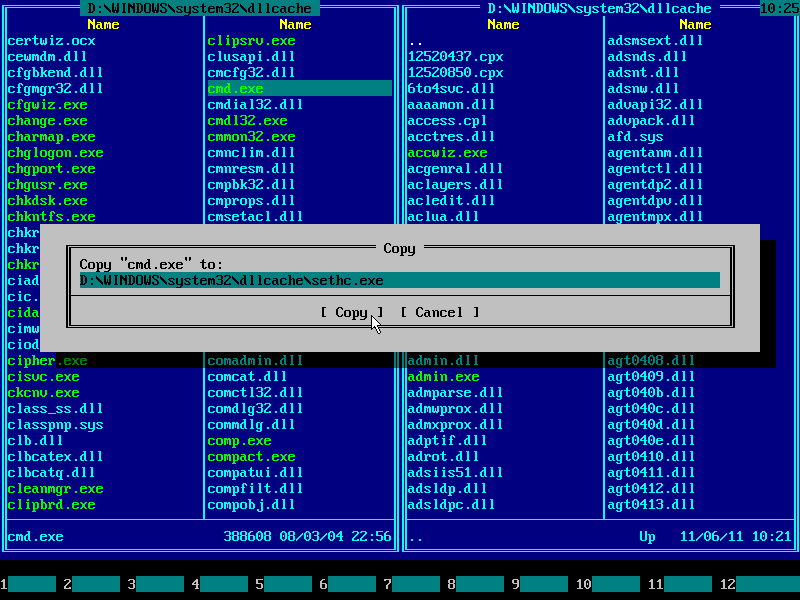
25. Press ENTER to confirm file overwrite:
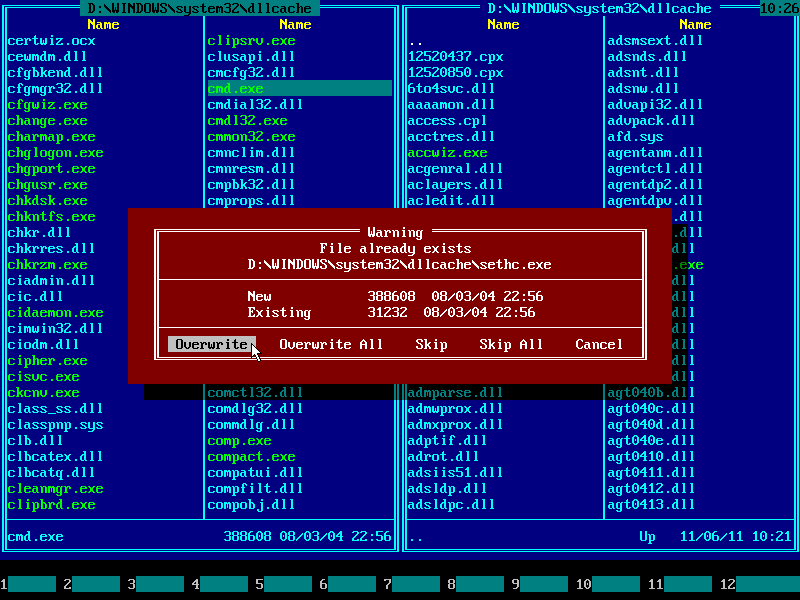
26. If there are no error messages, then file was copied successfully:
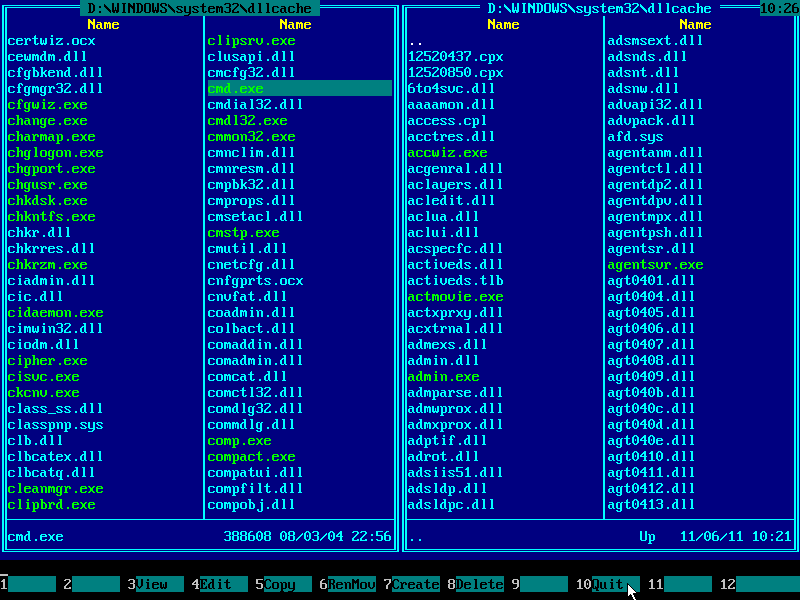
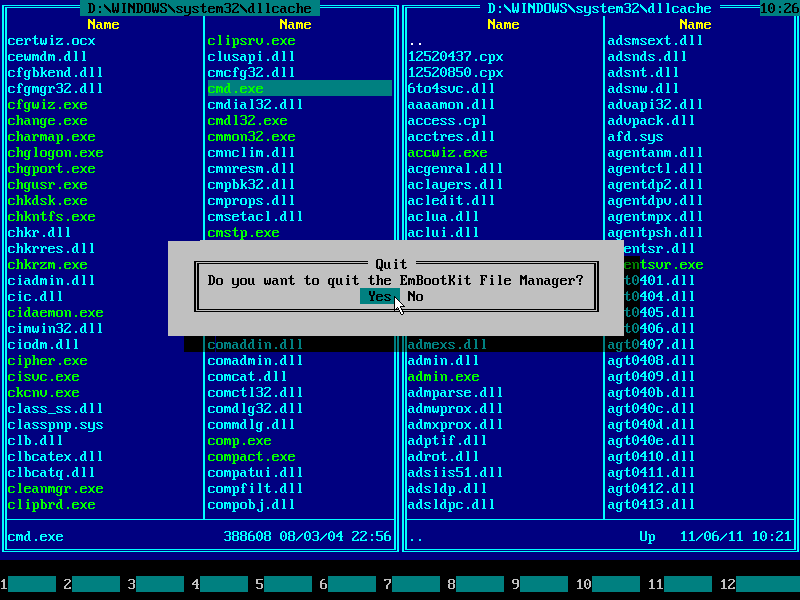
27. Press F10 to quit Emergency Boot Kit File Manager:
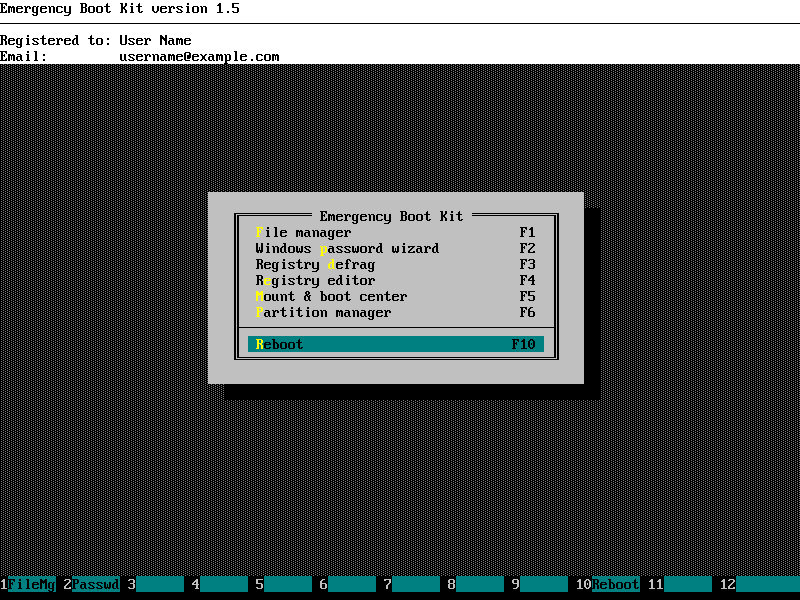
28. Press F10 in the Emergency Boot Kit Main Menu to reboot (or choose it using mouse):
4. Windows console cheatsheet
Once Windows shows up logon screen, press LeftAlt+LeftShift+PrintScreen key combination to run SETHC.EXE = CMD.EXE. If it doesn't work, here are other alternatives:
- LeftAlt+LeftShift+Numlock
- Left Shift pressed 5 times
- NumLock held for 5 seconds
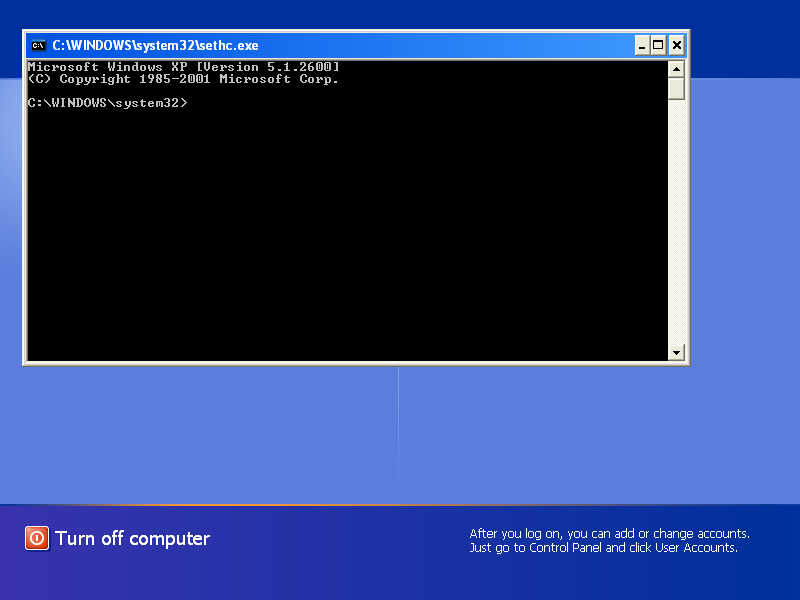
If logon screen does not appear and computer instantly logs on and runs malware at startup, hold Shift key at logon time to prevent automatic logon. Alternatively, set some non-empty password with Emergency Boot Kit password editor (like "1234") to prevent automatic logon.
Here's a Windows console cheat sheet:
| Command | Meaning |
| TASKMGR | Windows Task Manager |
| REGEDIT | Registry Editor |
| MSCONFIG | Various startup options |
| NET USER username password | Change password for given user |
| DEL filename | Delete given file. Apply it to malware EXE/DLL files. |
| CACLS filename /P SYSTEM:N | Revoke access to given file (leave delete permission only). Apply it to locked/busy malware EXE/DLL files. |
| TAKEOWN /F filename | Take ownership of given file. (Use this command if CACLS fails, then rerun the CACLS.) |
| DISKMGMT.MSC | Disk Management |
| COMPMGMT.MSC | Computer Management |
| EVENTVWR.MSC | Event Viewer |
| SERVICES.MSC | System Services |
| LUSRMGR.MSC | Local Users and Groups |
| RUNDLL32 SHELL32.DLL,Control_RunDLL NUSRMGR.CPL | User Accounts |
| DESK.CPL | Display Properties |
| WSCUI.CPL | Security Center |
| FIREWALL.CPL | Firewall Settings |
| HELP | Information about builtin console commands |
| DIR D:\ | View list of files and folders on disk D: in folder \ |
| XCOPY /? | Information about copying files and folders from command line |
| NET USE X: \\ServerName\ShareName | Map network drive |
| RUNDLL32 SHELL32.DLL,Control_RunDLL HOTPLUG.DLL | Unplug/Eject Hardware |
| CHKDSK C: /F | Schedule checking of disk C: on the next reboot |
| MDSCHED | Schedule memory diagnostics on the next reboot |
| TASKLIST | View list of running processes from the command line |
| TASKKILL | Terminate running process from the command line |
| DRIVERQUERY | View list of installed device drivers and their properties |
| SC QUERY | MORE | List running system services from command line |
| NET START ServiceName | Start system service from command line |
| NET STOP ServiceName | Stop system service from command line |
| START CMD | Another console window |
| BITSADMIN /TRANSFER "Job1" https://download.sysinternals.com/files/PSTools.zip %TMP%\PSTools.zip |
Download any file from the Internet without browser (akin to wget and curl in Unix environment) |
| RUNDLL32 ZIPFLDR.DLL,RouteTheCall %TMP%\PSTools.zip | Open ZIP file in the Explorer for extraction |
| PSEXEC -I -S -D CMD | Run another console window with superadministrator privileges (requires PSEXEC.EXE in the PATH) |
| WHOAMI | View current privilege level |
| SHUTDOWN /R | Reboot computer |
Switching from normal desktop session to zero session with privileged command prompt is performed by Ctrl+Alt+Del or WinKey+L.
5. Alternative approaches
If replacing SETHC.EXE with CMD.EXE in the filesystem is not desired, there are alternative ways to run CMD at logon screen via registry (you can use Emergency Boot Kit for offline registry editing):
Create registry key HKEY_LOCAL_MACHINE\SOFTWARE\Microsoft\Windows NT\CurrentVersion\Image File Execution Options\sethc.exe, then add value of type REG_SZ called Debugger containing C:\windows\system32\cmd.exe.
Or create registry key HKEY_LOCAL_MACHINE\SOFTWARE\Microsoft\Windows NT\CurrentVersion\Image File Execution Options\utilman.exe, then add value of type REG_SZ called Debugger containing C:\windows\system32\cmd.exe.
| About us | Partners | Contact us | Privacy policy |